Getting Your Jira Data
Cortex currently supports Jira Data Center (JSM) databases hosted on PostgreSQL only. Support for MySQL, Oracle, and SQL Server will be added in a future release. Jira Cloud is not supported - it is a fundamentally different product with a different database structure.
Exporting the Database
The recommended approach is to use pg_dump to export and pg_restore to import.
Using pgAdmin
- Right-click on the database and select Backup to export.
- To restore, right-click on the target database and select Restore.
Using the Command Line
pg_dump -U <db_user> -h <source_host> -F c -b -v -f jira_migration.dump <database_name>
pg_restore -U <db_user> -h <target_host> -d <new_database_name> -v "jira_migration.dump"
Using Jira's Built-in Backup
Jira Data Center includes an automatic backup feature that exports the database as an XML snapshot stored in a compressed ZIP file. Restoring from this requires Jira's own restore tool.
See: Restoring data from an XML backup
Which Tables to Include
We recommend exporting all tables. If you need to export a subset, make sure to include at minimum:
app_user, changegroup, changeitem, cwd_user, customfield, fileattachment, issuelink, issuestatus, issuetype, jiraaction, jiraissue, priority, project, worklog
Also include all tables with the prefix AO_54307E - these are used by plugins that store data in Jira's Active Objects framework.
Attachments
Jira stores attachments on disk, separately from the database. Attachments will need to be moved alongside your database export.
The default Jira home directory locations are:
- Windows:
C:\Program Files\Atlassian\Application Data\JIRA - Linux:
/var/atlassian/application-data/JIRA
Attachments are stored in the data/attachments subdirectory within the Jira home directory.
Attachment folders can be very large. Use your preferred file transfer utility to move them to the target location.
Configuring the Attachment Path in Cortex
Cortex defaults to C:\Program Files\Atlassian\Application Data\JIRA\data\attachments for the attachment root directory. If your attachments are stored elsewhere, you can update this in the Data Source Editor under the Attachments tab.
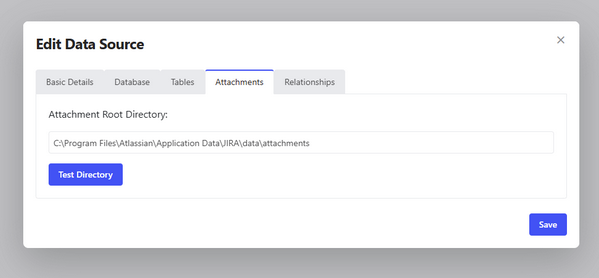
Use Test Directory to confirm Cortex can reach the path before saving.
Common Gotchas
Exporting while Jira is live - the database and attachments can fall out of sync if Jira is running during the export. Stop the Jira service before taking the final export.
Numeric IDs instead of readable values - Jira stores statuses, priorities, and users as numeric IDs internally. Make sure to include lookup tables (such as issuestatus and customfield) so that Cortex can display values like "In Progress" rather than 10001.
Missing plugin data - popular plugins store data in AO_ prefixed tables. Make sure your pg_dump includes all tables, not just the core Jira schema.
Character encoding issues - mismatched encoding between source and target (for example, Latin1 to UTF-8) will corrupt comments and descriptions. Use UTF-8 encoding and en_US.UTF-8 collation on the target database.
Windows path length limits - Jira's attachment folder structure can produce very long file paths that exceed Windows' 260-character limit during a move. Use a short root destination path such as D:\JiraData to avoid this.
Orphaned attachments - deleting an issue in Jira sometimes leaves the file on disk without a database record, or vice versa. Run Jira's built-in Integrity Checker before exporting to clean these up.
Sending the File
Database dumps and attachment folders can be large. If they are too big to send as an email attachment, we can work with a OneDrive or Google Drive link, or we recommend Our Box Drive. Contact us if you need to arrange a more secure transfer method.