Searching
The Search page is the primary way to find records in Cortex Archive. You can run a quick keyword search, build a filtered search with multiple criteria, and save searches to reuse later.
Searches created here are saved to your home page for quick access going forward. If you are looking to browse saved searches that existed inside your source system (Cherwell, Neurons, etc.) before you migrated to Cortex, see Saved Searches.
The Search Bar
At the top of the Search page you will find a business object dropdown, a text input, and a Search button.
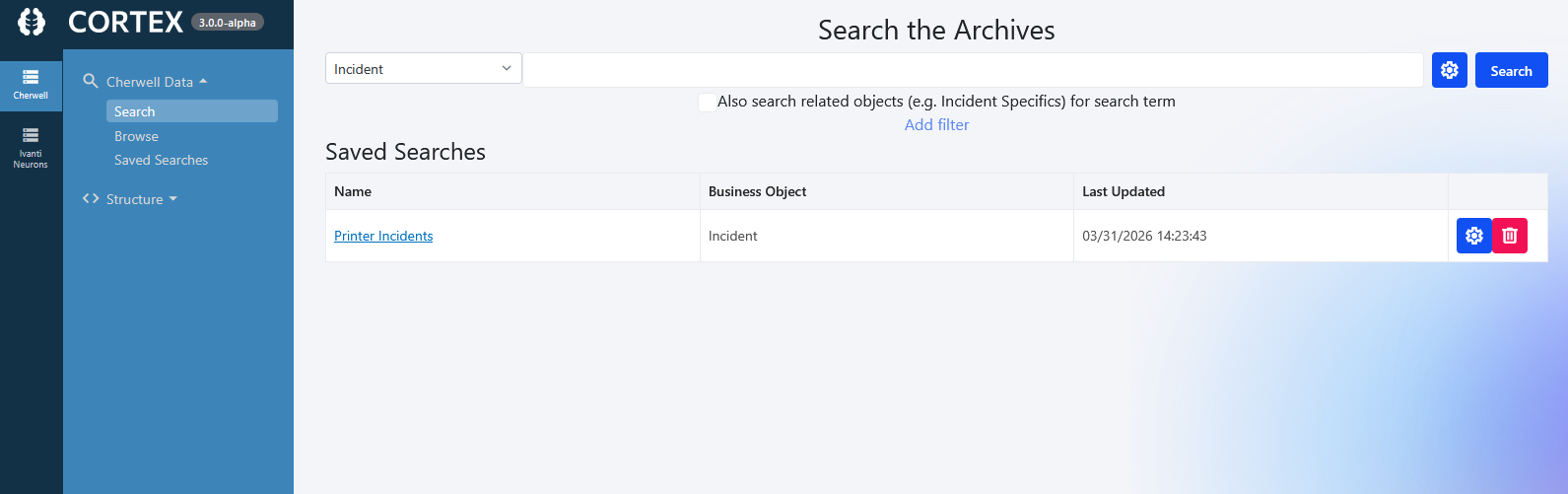
- Business object dropdown - selects which table to search. Defaults to Incident. If your system renamed the Incident object (for example, "Incident & Service Request"), it will reflect that name here.
- Text input - enter a keyword or phrase for a full-text search, or leave it blank if you are using filters only.
- Also search related objects - when checked, Cortex will also search related supporting objects (such as Incident Specifics) for the search term.
- Add filter - opens the filter builder to add specific search criteria (see below).
If full-text search is not available for the selected business object, the text box switches to Quick Search (Fallback Mode) and shows the message "Full-text search isn't available. Quick Search is using Fallback Mode (Slow), which may take longer."
Fallback Mode searches by scanning the object's text columns for your term instead of using the full-text index. Results can be broader than a keyword search, and the search can take noticeably longer on large archives - but searching keeps working when full-text search is unavailable.
A Cortex admin can also force Fallback Mode for a data source, for cases where full-text search appears to be available but returns incorrect results. See Data Sources.
Business Object Types
When selecting a business object, it helps to understand how they are organized:
- Major business objects - the main tables you are likely to search, such as Incident, Change, Problem, and Knowledge Article.
- Supporting business objects - objects that belong to a major object, such as Journals (notes on an incident) and Tasks.
- Lookup tables - the tables that populate dropdown values on forms.
In most cases you will be searching for major business objects. Supporting objects are useful if you need to pull up a specific task or journal by its ID.
Running an Ad Hoc Search
To run a quick keyword search:
- Select the business object you want to search from the dropdown.
- Type your search term in the text box.
- Click Search.
Results will appear in a grid below. Double-click any row to open the record.
Adding Filters
For more targeted searches, use filters to narrow results by specific field values.
- Click Add filter.
- Select the field you want to filter on (for example, Incident Status).
- Choose an operator (for example, is not).
- Select or enter the value (for example, Closed).
- Click Search.
You can stack multiple filters. For example, to find all incidents that are neither closed nor resolved:
- Filter 1: Incident Status is not Closed
- Filter 2: Incident Status is not Resolved
Results will show everything that matches both conditions - such as New, In Progress, Pending, and Assigned.
Filtering by a Date Range
For date and date-time fields, the operator list includes Between. Use it to search a period instead of a single date:
- Click Add filter.
- Select a date field.
- Choose Between.
- Enter the start and the end of the range.
Between matches records where the field falls on or after the start value and on or before the end value - the same result as combining "greater than or equal" and "less than or equal" conditions. It is offered for date fields wherever the archive supports those two comparisons.
Because date ranges are part of the shared search model, they work anywhere search criteria are built: ad hoc searches, saved searches, filters passed to embeds, and Cortex's MCP search tools.
Viewing a Record
Double-click any row in the search results to open the full record. From here you can:
- See all field values on the form
- View related records in the relationship grids at the bottom of the screen (such as journals, tasks, approvals, and CIs)
- Double-click related records to open them
You may see two sets of tabs at the bottom of the record. One set comes from the form arrangement in your source system, and the other comes from Cortex's related item navigation. Both are showing related data - they are just organized differently depending on how your system was configured.
Saving a Search
If you have built a search you want to reuse, you can save it:
- Build your search using the text box and/or filters.
- Click Save.
- Give the search a name.
- Click Save.
The search will appear on the home page under Saved Searches.
Depending on your Cortex Security Group permissions, you may be able to save searches for yourself only, or for everyone. If you only have permission to save for yourself, a message will indicate this when you go to save.
Managing Saved Searches
From the Saved Searches list on the home page, each saved search has two action buttons:
- Gear icon - opens the search editor, where you can update the search criteria and customize which columns appear in the results grid.
- Trash icon - deletes the search. You can always delete your own searches. Whether you can delete a search saved for everyone depends on your permissions - if you do not have permission, the delete button will not be visible.
Customizing Columns
When editing a saved search, you can control which columns appear in the results grid. Remove columns you do not need, add ones you do, and save. The next time you run the search, the grid will reflect your changes.
Troubleshooting
If you are having trouble with search results or filters, see: