SAML with Okta
Prerequisites
- Cortex must be running at a stable URL that will not change. This URL is referred to throughout this page as
<your cortex url>and in configuration asPublicUri. - Cortex should be running on HTTPS with a valid certificate.
Step 1 - Configure Cortex as an Application in Okta
-
In Okta, go to Applications > Applications and click Create App Integration. Select SAML 2.0 and click Next.
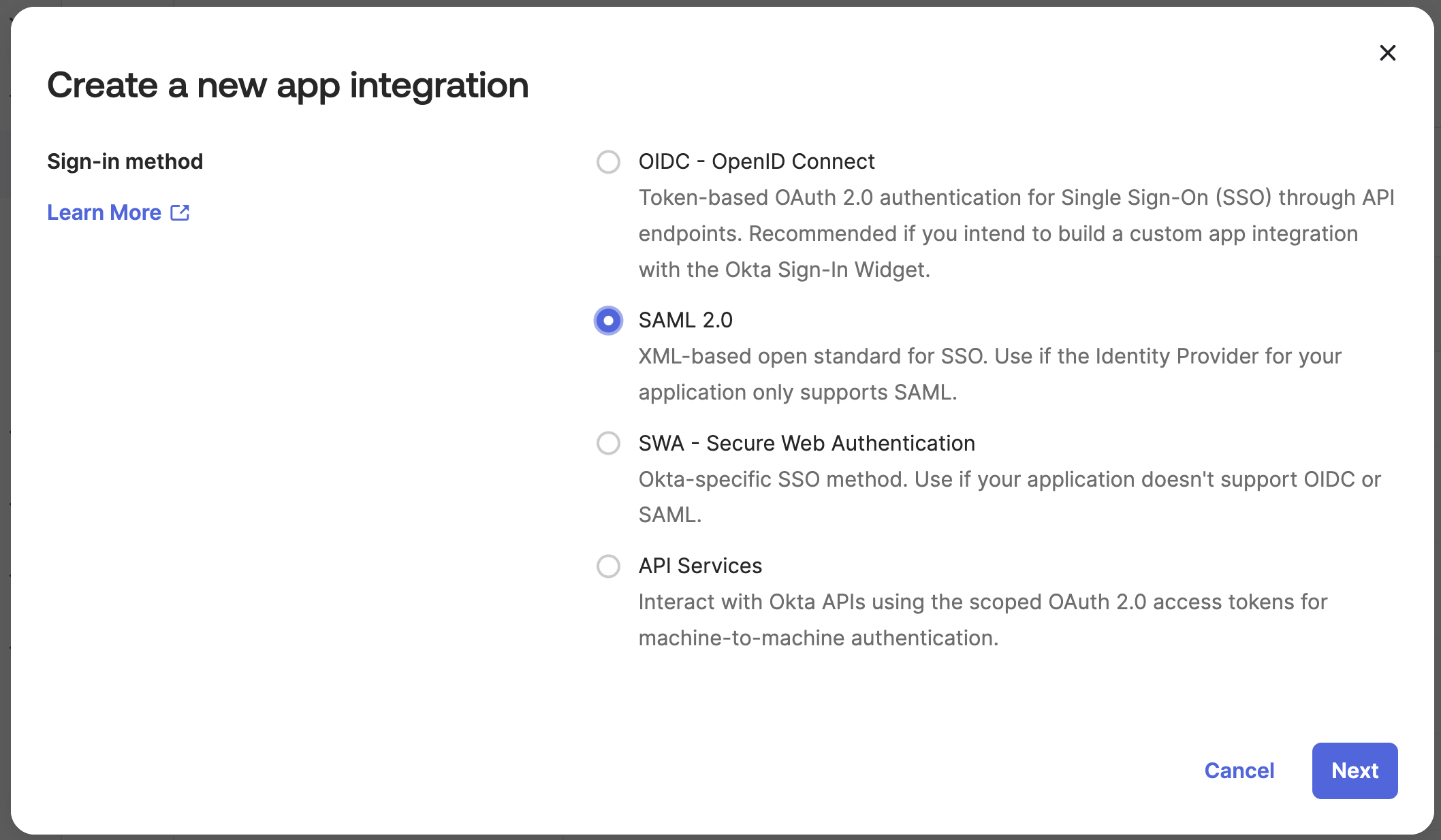
-
Enter
Cortexas the application name and click Next.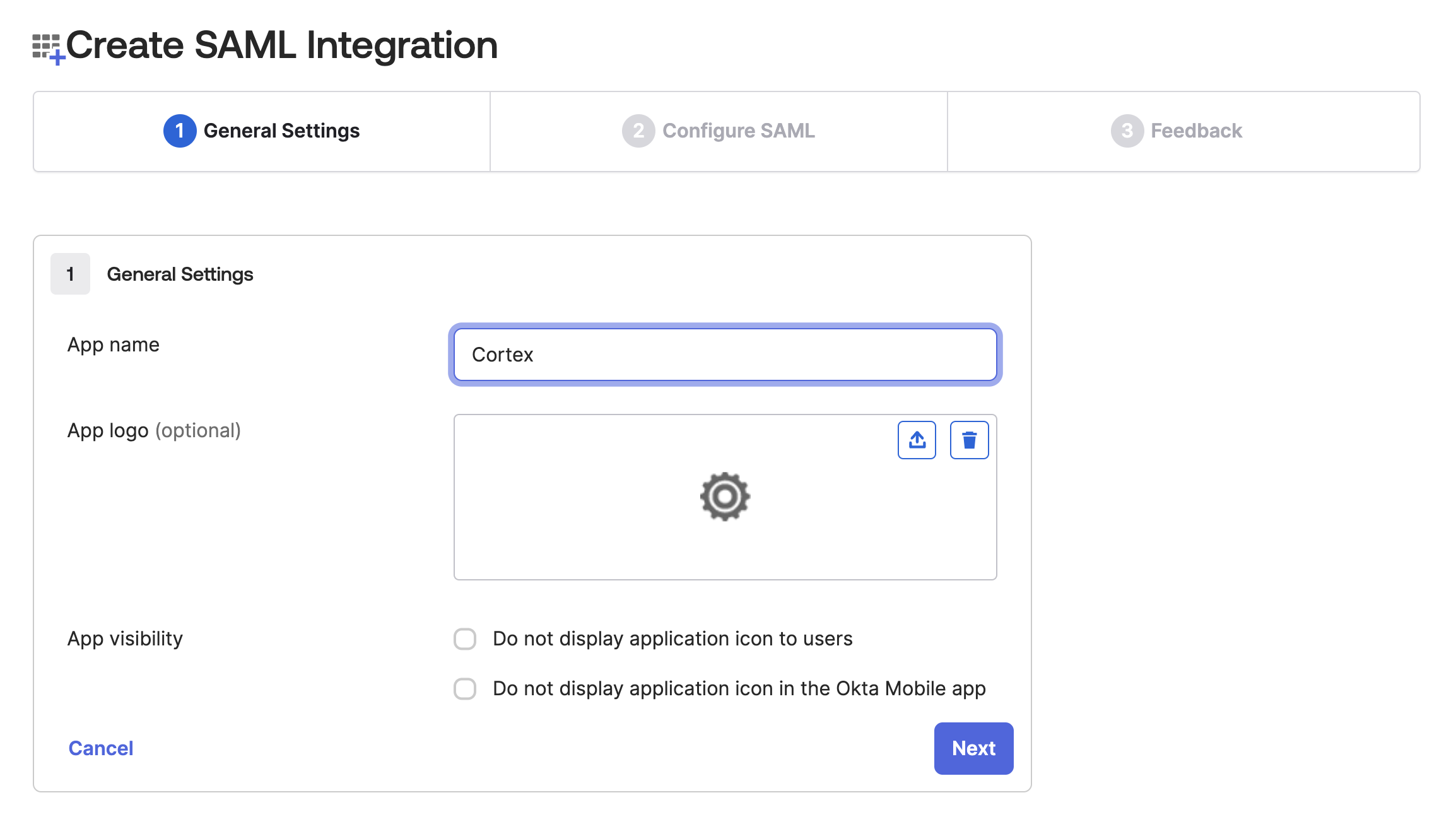
-
Enter the following values and click Next:
- Single sign-on URL -
<your cortex url>/saml-assertion - Audience URI (SP Entity ID) -
<your cortex url> - Name ID format -
EmailAddress
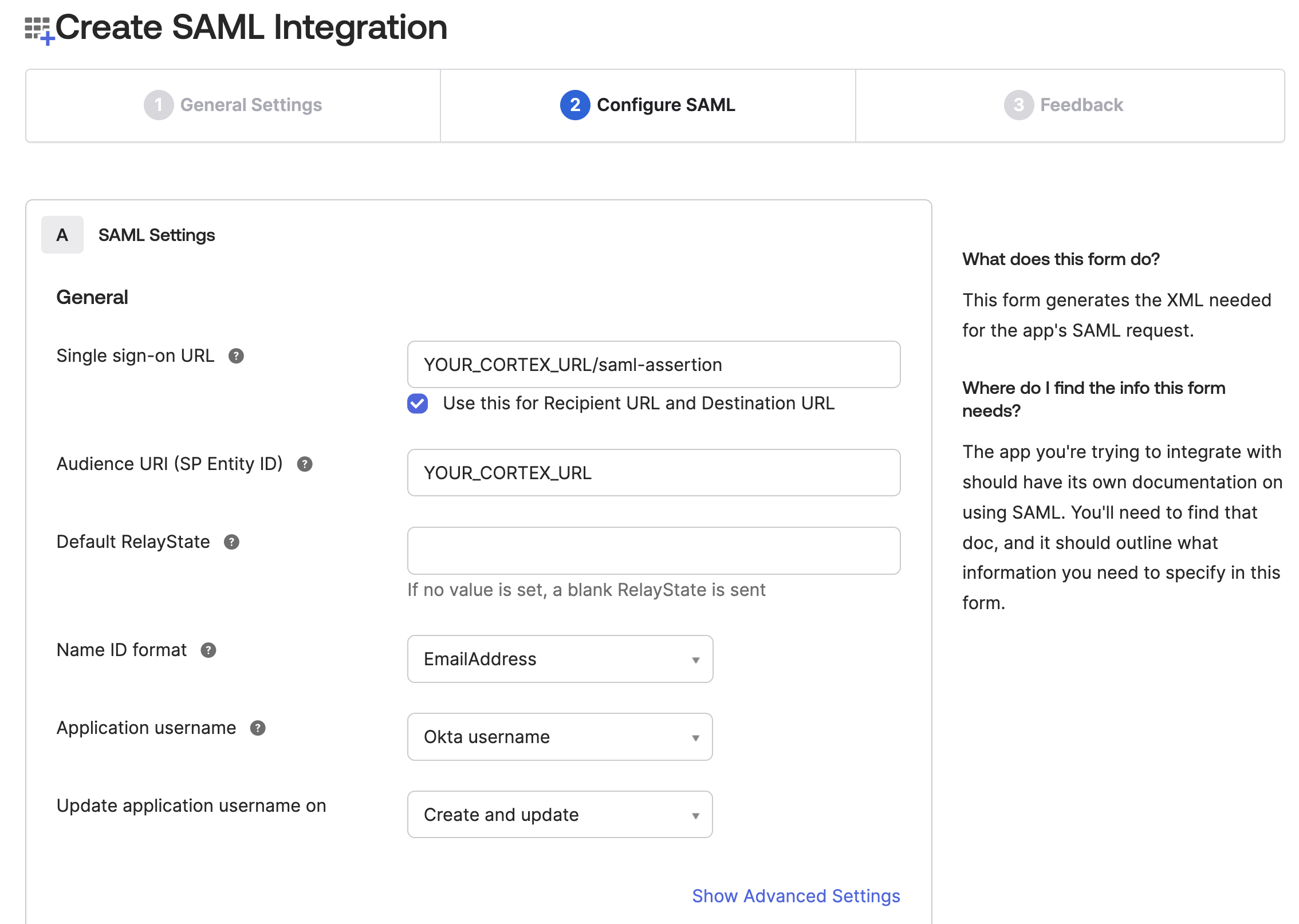
- Single sign-on URL -
-
Complete step 3 at your discretion (this is optional feedback for the Okta team) and click Finish.
-
On the application settings page, go to the Sign On tab and copy the Metadata URL. You will use this as
IdPMetadataUriin the next section.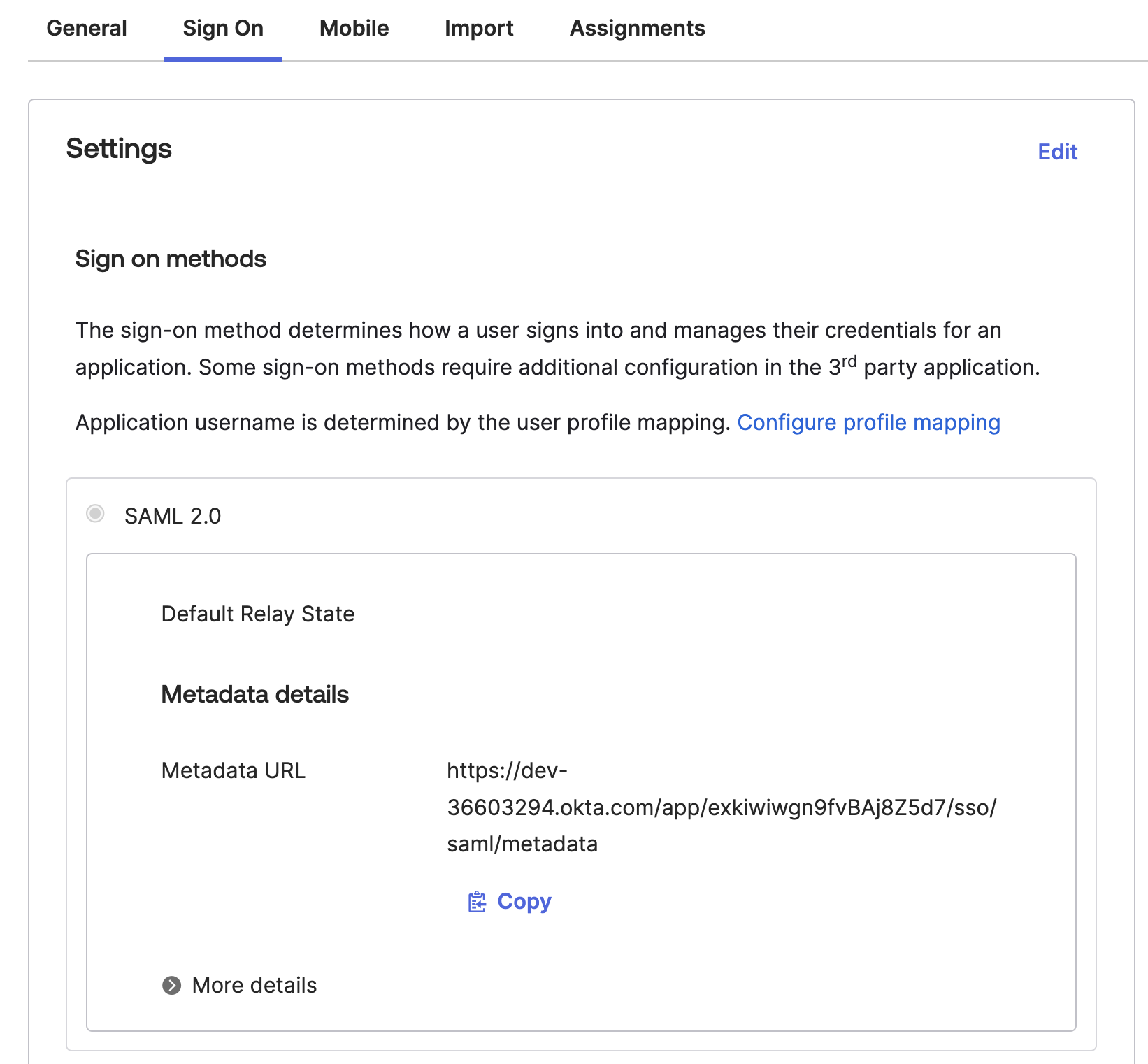
-
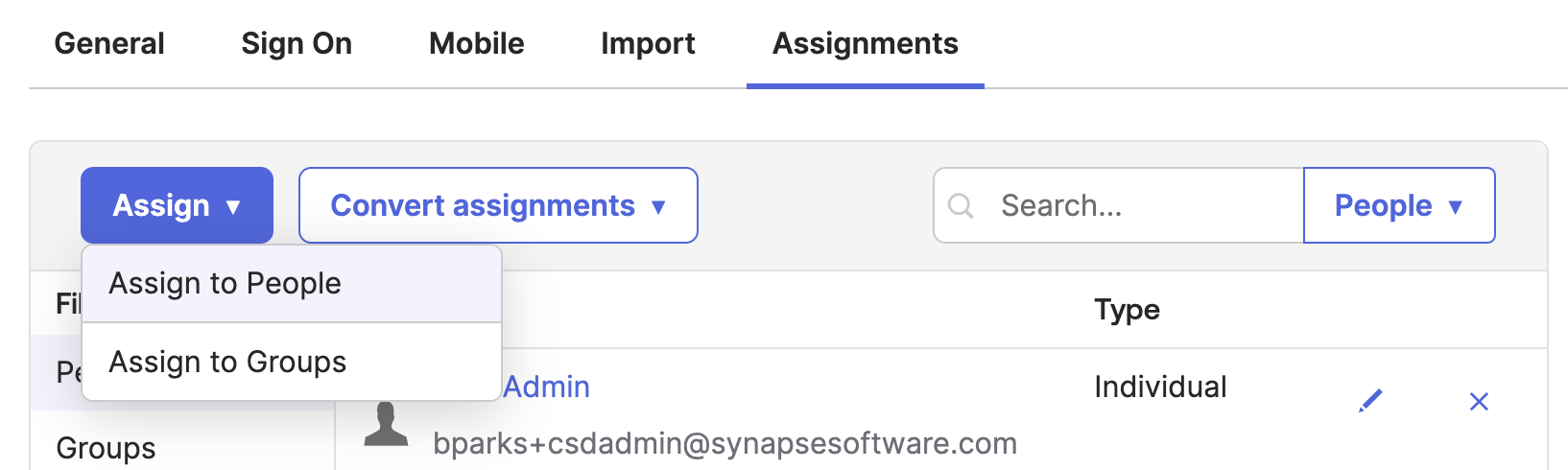
Assign users or groups to the application.
Step 2 - Configure Cortex
In appsettings.json, set the authentication type to saml:
{
  "Authentication": {
    "Type": "saml",
    "Saml": {
      "IdPMetadataUri": "https://your-okta-domain/app/your-app-id/sso/saml/metadata",
      "PublicUri": "https://your-cortex-url",
      "CertificateValidationMode": "None"
    }
  }
}
You will also likely need to set LookUpBy to Email in the Authentication block. Try without it first - if you appear logged in but have no access to any Business Objects and see an email address in the bottom-left corner, add this setting.
Additional Options
Start with the setup above, then change one option at a time and re-test. Depending on the type of misconfiguration, you may see feedback in the UI or in the logs.
The following options are listed in Block:SubBlock:Setting format. In appsettings.json this maps to nested JSON blocks. In environment variables, replace : with __ (for example, Authentication__Saml__ForceAuthn).
| Setting | Description |
|---|---|
Authentication:LookUpBy | Set to Email if your IdP identifies users by email address |
Authentication:IdentifierClaim | The name of the claim your IdP sends to identify users - could be emailAddress or a URL-style claim |
Authentication:Saml:CertificateValidationMode | Set to None to disable certificate validation entirely |
Authentication:Saml:RevocationMode | Controls whether the IdP's certificate is checked for expiry and revocation |
Authentication:Saml:ForceAuthn | Forces the user to re-enter credentials on the IdP login screen even if they already have an active session. Equivalent to Cherwell's "Authentication: Force" setting. |
Troubleshooting
If login fails or users are not recognised, see: