Cherwell Form Controls Overlap or Render Out of Place
Symptoms
On archived Cherwell forms, controls appear stacked on top of one another, pushed far from where they belong, or sized unexpectedly — even though the same form looks correct in Cherwell itself.
Cause
Cherwell stores a form control's position and size per culture (and per adaptive layout), not just once. A control that has been edited or localised in more than one language can therefore hold a different X position, Y position and size for each culture.
Cortex has to pick one of those cultures to render the control. When it resolves a culture the layout was not designed in, it uses that culture's coordinates, so the control is drawn somewhere other than its intended spot — which is what produces the overlapping and out-of-place controls.
Diagnose the control in the Database Inspector
1. Find the control in the layout preview
-
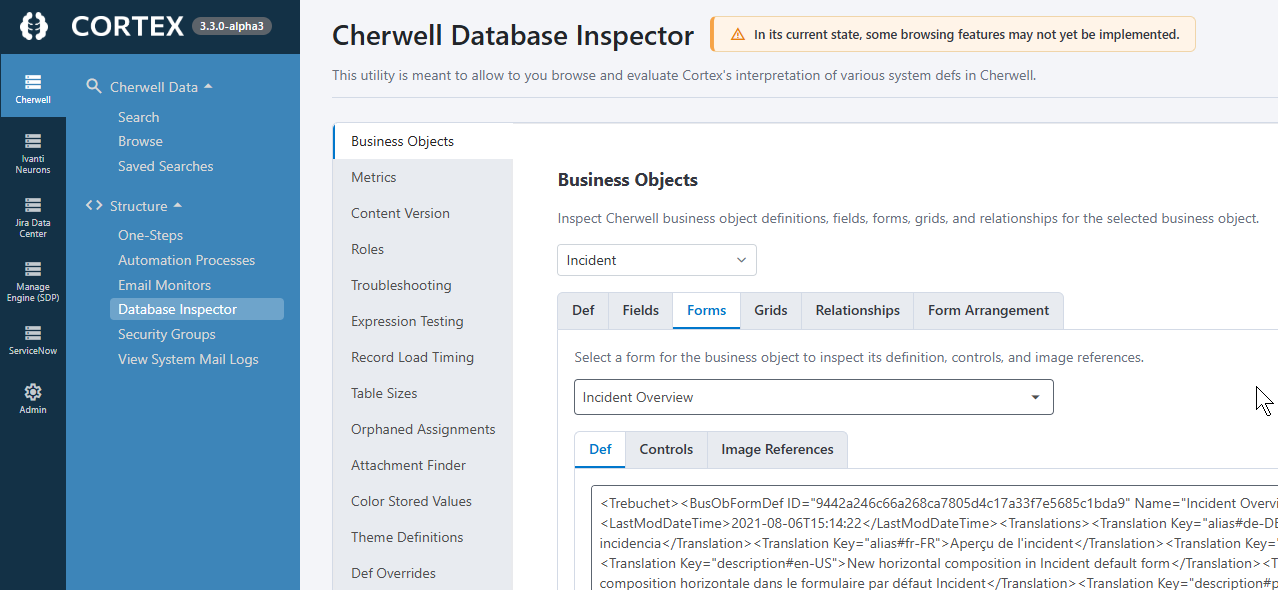
Go to Structure → Database Inspector and make sure the Cherwell data source is selected.
-
On the Business Objects tab, select the business object in the dropdown.
-
Select the Forms tab, then select the form you are looking at. If the form is the default one for the business object, it is usually named the same as the business object (for example
Incident Overview). -
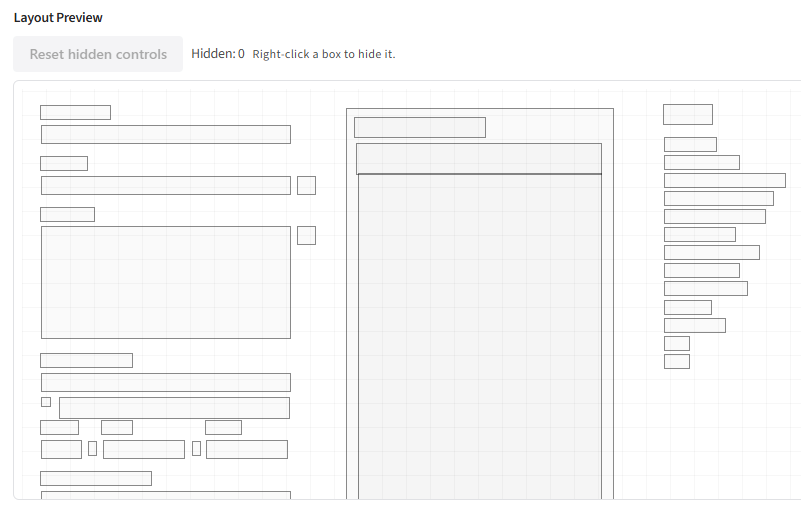
Select the Controls tab, then scroll to the bottom of the tab to the Layout Preview.
-
The preview draws one rectangle per form control. Right-click a rectangle to hide it, which lets you reach a control that is sitting underneath another one. Click Reset hidden controls to show them all again.
-
Left-click the rectangle for the control that is out of place. A dialog opens with the details of that control.
2. Read the control's position translations
-
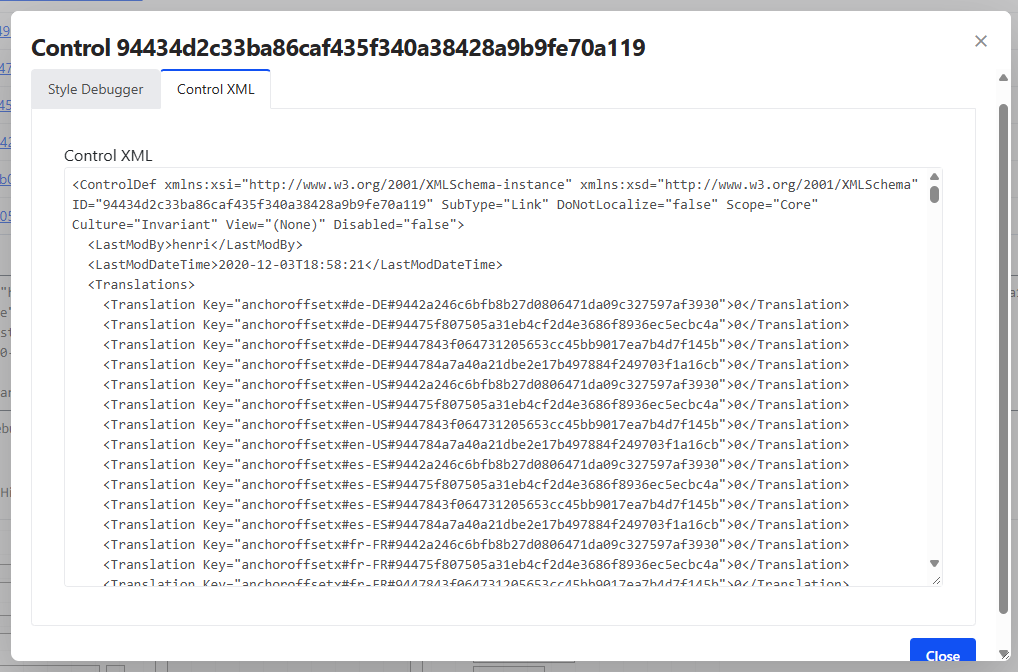
In the control dialog, select the Control XML tab. (The dialog also has a Style Debugger tab showing the control's resolved colours.)
-
In the XML, find the
<Translation>elements inside the<Translations>element. Each one has aKeyin this shape:property#culture#adaptive-layout-idFor example, the same control might have
locationx#en-US#944b570f...andlocationx#fr-CA#944b570f...— the same layout, resolved for two different cultures. -
The properties that control where a control sits and how big it is are:
Property Meaning locationxDistance from the left edge of the form locationyDistance from the top edge of the form sizewidthControl width sizeheightControl height Coordinates are measured from
0,0at the top-left corner of the form. -
Compare the values for the same property and the same adaptive layout ID across cultures. The culture whose coordinates match where the control is meant to sit is the one the layout was designed in; the others are the alternative positions causing the overlap.
This is easiest to confirm on a control that is a long way from where it should be, because the difference between one culture's value and another's will be large.
-
If the values are all plausible, or you are not sure which culture is correct, send the Control XML for the affected control to Synapse Software support. Include the whole
<ControlDef>element, and mention the business object and form you took it from.
Fix: set the culture Cortex prefers for position and size
Once you know which culture the form layout was designed in, tell Cortex to use that culture's position and size values:
-
Go to Admin → Data Sources → Edit Data Sources.
-
Click the pencil icon next to the Cherwell data source.
-
Open the Cherwell tab, then select Forms & expressions in the list on the left.
-
Under Form rendering, set Prefer this culture for position/size when multiple exist to the culture the layout was designed in (for example
fr-CA). The dropdown uses .NET culture names.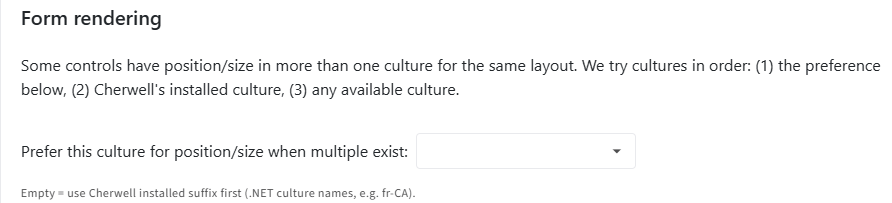
-
Click Save.
Cortex resolves the position and size of a control by trying cultures in this order:
- The culture set on the Cherwell data source, if one is set.
- Cherwell's installed culture.
- Any available culture for that layout.
Leaving the setting empty means Cherwell's installed culture is tried first. Setting it only changes which culture's stored position and size Cortex uses — it does not change any data in your Cherwell database.
This is a data source-wide setting, so it applies to every form rendered from that Cherwell archive. Set it to the culture the forms were designed in, not to the culture of the person viewing the record.
Related pages
- Show Cherwell form controls that sit outside the form area — for controls that are missing from the form rather than misplaced.
- Database Inspector & Diagnostics — the other diagnostic tools in the Database Inspector.