Granting Cortex Admin Access
Cortex normally determines admin status by matching a user's identity to their permissions in your source system or identity provider. You can also grant admin access directly and manually using Cortex System Manager - useful as a fallback, or right after changing authentication methods.
Prerequisites
The user must have logged into Cortex at least once. Cortex only creates a user's account on first login, and System Manager can only grant admin status to an account that already exists.
Steps
- Open Cortex System Manager. You can find it from the desktop shortcut, or by running
Cortex.Config.exedirectly from the Cortex installation directory. - Click Admins....
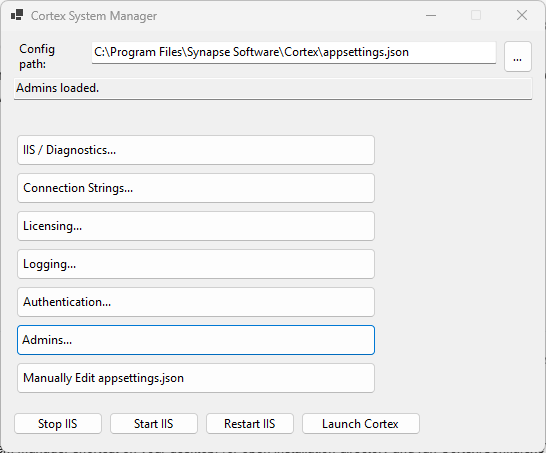
- Click Load Admins to see the current list of admin users.
- Enter the user's username or email address in the field provided. Check the existing list for the format your deployment uses - some environments identify users by username, others by email.
- Click Make Admin.
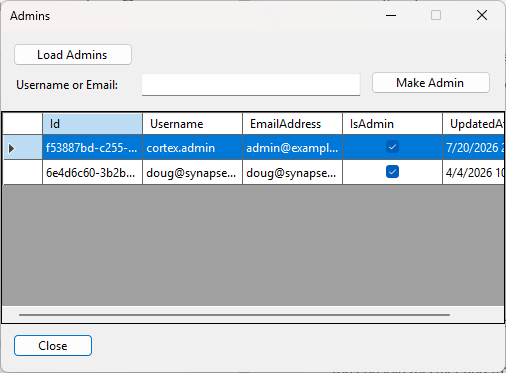
- Click Close.
The user will have admin access on their next login.
If Admin Access Doesn't Stick
If the user loses admin access again after a subsequent login, the underlying cause is usually a mismatch between the LookUp By setting and the identifier your identity provider sends. See SAML Login Troubleshooting and User Identity Matching.