Saved Searches
The Saved Searches page lets you browse and run searches that existed inside your source system before you migrated to Cortex - the same searches your team built in Cherwell, Neurons, or another supported system.
These are distinct from searches you create yourself inside Cortex. For those, see Searching.
Databases often contain a large number of saved searches - including out-of-the-box content and searches created by previous users. Most teams only need a small subset of these after migrating. If you want to bring a handful of frequently-used searches to the surface, consider recreating them on the Search page so they appear on your home page for quick access.
The Saved Searches Page
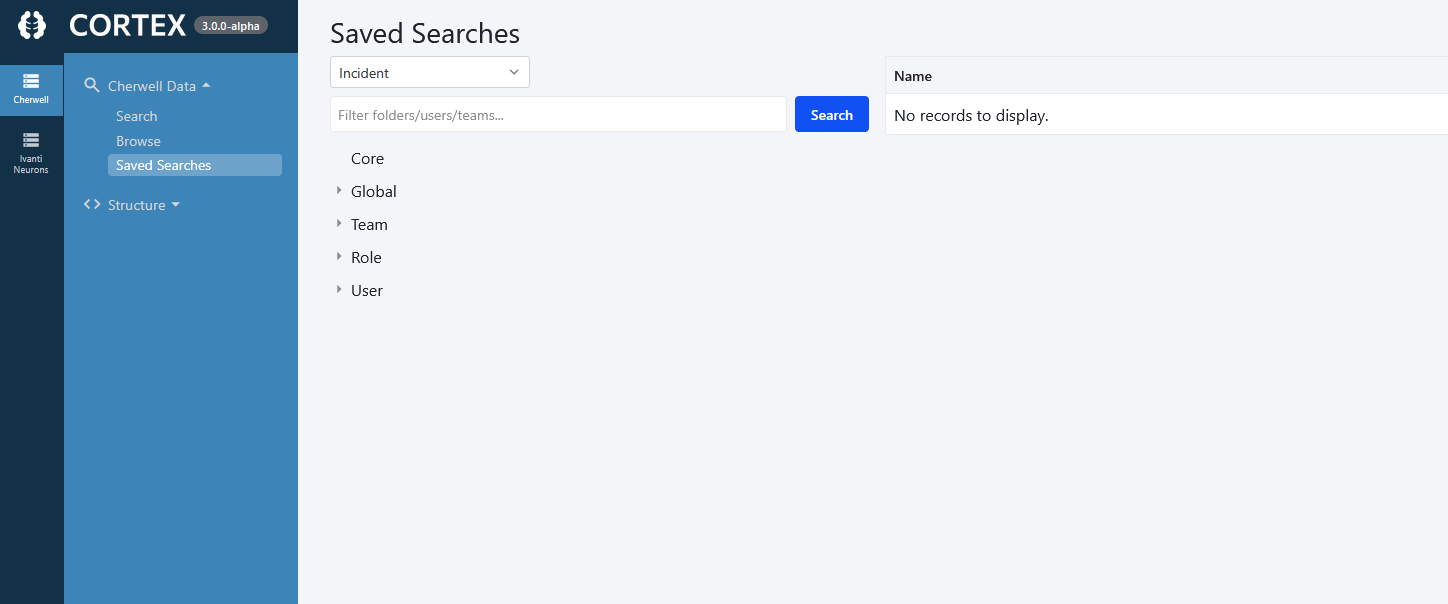
At the top of the page, select the business object you want to browse saved searches for from the dropdown. The tree below will update to show the available searches for that object.
You can also filter by folder, user, or team using the filter box.
Search Scopes
Saved searches are organized into scopes that match how they were structured in your source system:
- Core - built-in searches that shipped with the product
- Global - searches saved for all users
- Team - searches scoped to specific teams
- Role - searches scoped to specific roles
- User - searches saved by individual users
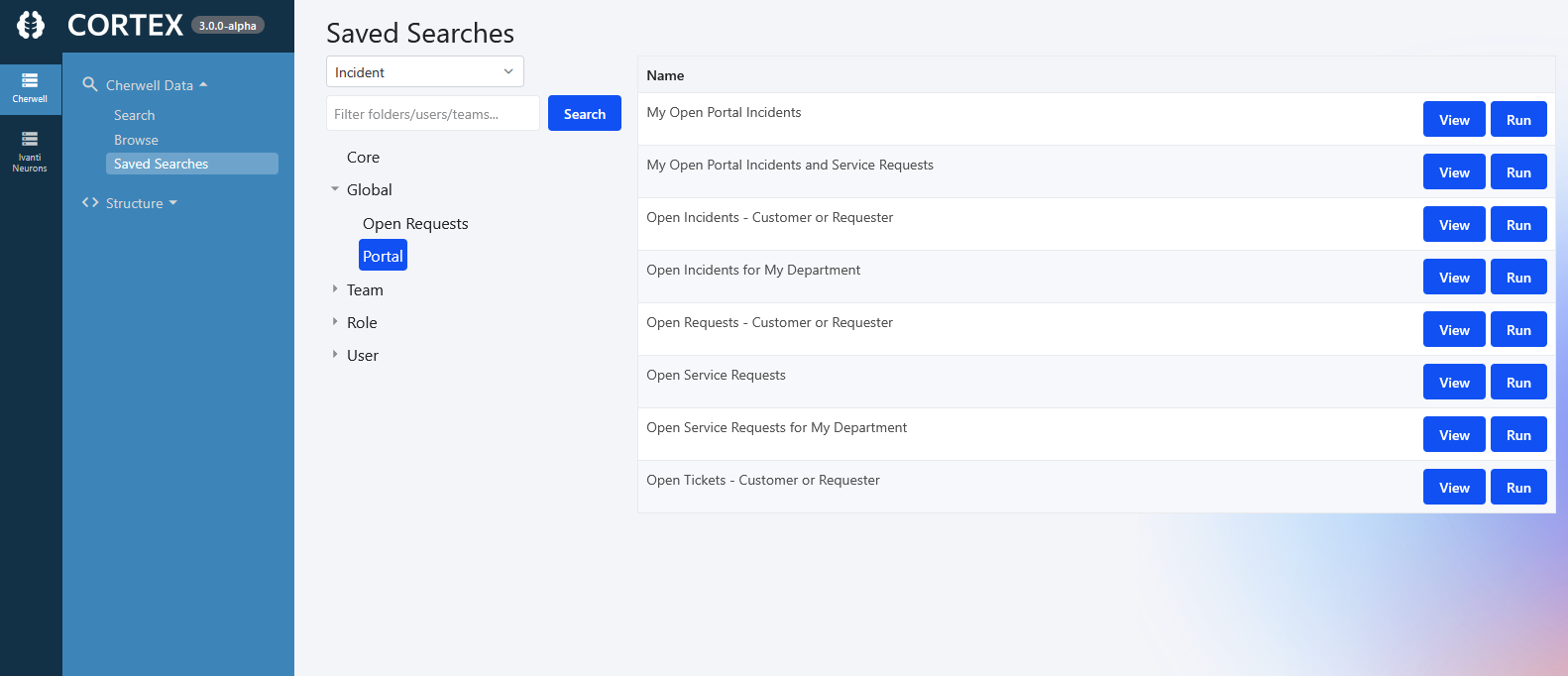
Expand any scope to see the searches within it.
Your Cherwell Saved Searches on the Search Page
Browsing the full Saved Searches page is not the only way back to a search you built inside Cherwell. The Search page for a Cherwell data source shows a Cherwell Saved Searches section underneath your Cortex saved searches, listing the searches that belong to you in the archive:
- The list shows your own saved searches (the User scope, owned by your mapped Cherwell user) - up to five of them - with their name and the business object they search.
- Click a search name to open it.
- Browse all N Cherwell saved searches opens the full Saved Searches page described above, for everything else: global, team and role searches, and other users' searches.
The section only appears on the Search page itself, and only when a Cherwell data source is configured - it is hidden while you are viewing a specific record or the results of a saved search.
If your account has no Cherwell security group mapped for the data source, the section cannot list your searches and offers the browse-all link instead. The same happens if the searches fail to load. See Adding and managing users if Cherwell security groups need mapping for your account.
Customizing Columns
Column customization is available for Cherwell archives. Other archive data source types support it on the Search page instead - see Customizing Columns.
When viewing search results in a grid, you can customize which columns are displayed and in what order.
Choosing Columns
- Open the Customize Columns dialog from the search results toolbar.
- Select which columns to include in the grid.
- Click Apply or Save to keep your changes.
Reordering Columns
Columns can be reordered using either method:
- Drag and drop — grab the drag handle icon (six-dot grid icon) next to any column name and drag it to the desired position. A blue highlight and insertion line will show where the column will land.
- Up/Down buttons — select a column and use the move up and move down buttons to adjust its position.
Saving Customized Columns with Saved Searches
When you save a customized column layout, it is preserved with the saved search. This means you can set up different column sets for different searches — for example, one search that shows only a few key columns for quick triage, and another that shows all available fields for detailed analysis.
Changes are applied immediately when you run the saved search, without needing to reopen the dialog.
Click any saved search scope to view the available searches to run. The saved searches will appear in a grid on the right. Selecting "View" will display the criteria of the search. Selecting "Run" will execute the saved search.
Troubleshooting
If a saved search returns no results or throws an error, it may reference a business object or field that is not available in your archive. See: