SAML Authentication with ADFS
This guide explains how to configure Cortex Archive to authenticate users using SAML 2.0 with Active Directory Federation Services (ADFS).
The process consists of:
- Configuring Cortex Archive to trust your Identity Provider (IdP)
- Configuring ADFS to trust Cortex Archive as a relying party
- Validating identity claims and login behavior
Prerequisites
Before starting, ensure the following are available:
- An ADFS server connected to your Active Directory domain
- A valid, unexpired certificate for SAML signing and encryption
- The PFX (with private key) must be available on the Cortex Archive server
- The public certificate only must be available on the ADFS server
- Administrative access to both the Cortex Archive host and the ADFS management console
Step 1 - Configure Cortex Archive to Use SAML
On Windows, the preferred way to set these values is the Cortex System Manager - it writes the same settings to appsettings.json for you and validates them before saving. If Cortex is not running on Windows, or you would rather edit the file directly, use the appsettings.json option instead.
Option 1 - Configure with Cortex System Manager (Windows)
-
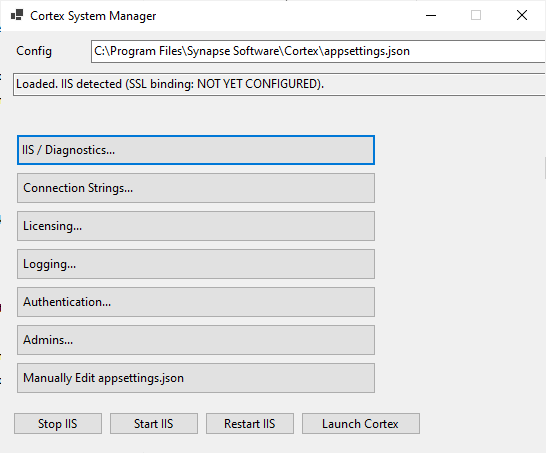
Open Cortex System Manager. You can find it from the desktop shortcut, or by running
Cortex.Config.exedirectly from the Cortex installation directory. -
Click Authentication....
-
Set Type to
saml. The SAML section appears. -
Fill in the SAML section:
- IdPMetadataUri - your ADFS federation metadata URL, for example
https://YOUR-ADFS-SERVER/FederationMetadata/2007-06/FederationMetadata.xml. - PublicUri - the externally accessible URL users use to reach Cortex Archive (for example:
https://archive.company.com). - CertificateFile and CertificatePassword - the
.pfxcertificate containing the private key, and the password used when exporting it. Use the ... button to browse for the file. - CertificateValidationMode -
None, unless your environment requires a stricter mode.
- IdPMetadataUri - your ADFS federation metadata URL, for example
-
If ADFS identifies users by email address, set LookUpBy to
email. -
Click SAVE.
Option 2 - Edit appsettings.json
In appsettings.json, set the authentication type to saml:
{
  "Authentication": {
    "Type": "saml"
  }
}
Configure SAML identity provider settings
Under the Authentication:Saml block, configure the following:
-
IdPMetadataUri- the URL to your ADFS federation metadata. For most environments:https://YOUR-ADFS-SERVER/FederationMetadata/2007-06/FederationMetadata.xml -
PublicUri- the externally accessible URL users use to reach Cortex Archive (for example:https://archive.company.com) -
CertificateFile(recommended) - full path to the.pfxcertificate file containing the private key -
CertificatePassword- the password used when exporting the certificate
Example configuration:
{
  "Authentication": {
    "Type": "saml",
    "Saml": {
      "IdPMetadataUri": "https://adfs.company.com/FederationMetadata/2007-06/FederationMetadata.xml",
      "PublicUri": "https://archive.company.com",
      "CertificateFile": "C:\\certs\\saml-signing.pfx",
      "CertificatePassword": "your_certificate_password"
    }
  }
}
Restart IIS to apply the changes
Cortex reads these settings when it starts, so the change does not take effect until IIS is restarted:
- In Cortex System Manager, click Restart IIS at the bottom of the window.
- In an elevated command prompt, run
iisreset. - In IIS Manager, recycle the Cortex application pool.
If you edited appsettings.json by hand, save the file before restarting.
Step 2 - Configure ADFS as a Relying Party
On the ADFS server:
- Create a new Relying Party Trust using manual configuration.
- When prompted:
- Entity ID / Relying Party Identifier - use the same value as
PublicUri - Signing certificate - upload the public certificate only (no private key)
- Entity ID / Relying Party Identifier - use the same value as
- Accept defaults unless your organization has specific security requirements.
Step 3 - Configure Claims Mapping
Cortex Archive needs a stable identifier to match incoming users to existing accounts.
At minimum, map:
- LDAP attribute:
SAM-Account-Name - Outgoing claim type:
Name ID
This allows Cortex Archive to match users by their Windows username. Additional claims may be mapped depending on your setup (email-based lookup, custom identifiers, etc.).
Optional Configuration Settings
Most environments work with the default configuration. If authentication fails or behaves unexpectedly, the following settings may help.
Settings are listed in Block:SubBlock:Setting format:
- In
appsettings.json- use nested JSON blocks - In environment variables - replace
:with__(for example,Authentication__Saml__ForceAuthn)
| Setting | Description |
|---|---|
Authentication:LookUpBy | Set to Email if users should be identified by email address instead of username |
Authentication:IdentifierClaim | The name of the claim sent by ADFS that identifies the user (for example: emailAddress or a URI-style claim) |
Authentication:Saml:CertificateValidationMode | Set to None to disable certificate validation - not recommended for production |
Authentication:Saml:RevocationMode | Controls certificate revocation checking behavior |
Authentication:Saml:ForceAuthn | Forces credential entry at the IdP on every login, even if the user has an active session |
Troubleshooting
If login fails, users are redirected unexpectedly, or claims are not recognised, see:
SAML with ADFS Troubleshooting
A video walkthrough of the full ADFS configuration is also available on that page.