Granting Cortex Admin Access
Cortex normally determines admin status by matching a user's identity to their permissions in your source system or identity provider. You can also grant admin access directly and manually using Cortex System Manager - useful as a fallback, or right after changing authentication methods.
Prerequisites
The user must have logged into Cortex at least once. Cortex only creates a user's account on first login, and System Manager can only grant admin status to an account that already exists.
Steps
- Open Cortex System Manager. You can find it from the desktop shortcut, or by running
Cortex.Config.exedirectly from the Cortex installation directory. - Click Admins....
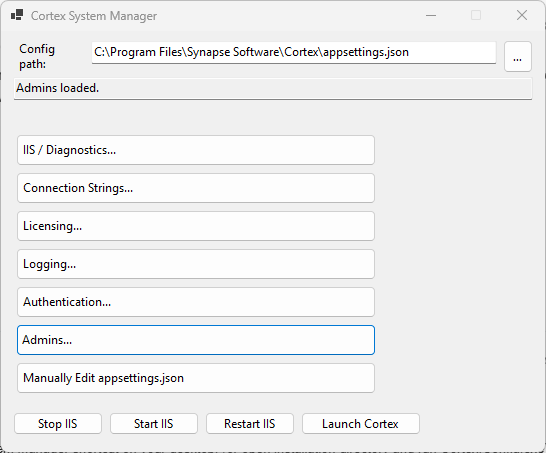
- Click Load Admins to see the current list of admin users.
- Enter the user's username or email address in the field provided. Check the existing list for the format your deployment uses - some environments identify users by username, others by email.
- Click Make Admin.
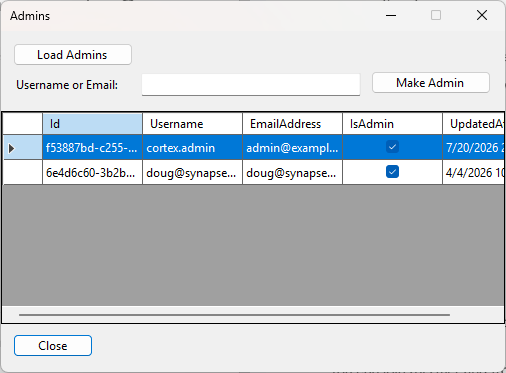
- Click Close.
The change is written to Cortex straight away and the admin list is reloaded, so you can confirm the result. The user has admin access the next time they sign in.
What Make Admin Does
Make Admin promotes an existing Cortex account by updating two things on the account's record in the Cortex database:
- the admin flag that Cortex's admin screens and settings are checked against, and
- the account's Cortex security group, which is set to your deployment's default Admin group.
A few points are worth knowing before you use it:
- The account must already exist. Cortex creates a user's account on their first sign-in, so an account that has never logged in cannot be promoted - have the user sign in once first.
- Username or email address, whichever your deployment uses. The lookup is case-insensitive and matches either the account's username or its email address. If nothing matches, no change is made.
- It assigns the default Admin group. Cortex resolves the single Cortex security group flagged as the default Admin group - the one a standard Cortex install creates. If no group carries that flag, or more than one does, Make Admin refuses the change and tells you which problem it found.
- Running it twice is harmless. If the user is already an admin in the default Admin group, Make Admin reports that and changes nothing. If an account is flagged as an admin but is missing the group assignment - for example it was promoted by an older Cortex version - running Make Admin repairs the record.
- It changes nothing else. Make Admin does not create or delete an account, does not set or reset a password, and does not change the user's permissions in your source system. Which records a user can see in an archive is decided by the archive's own permissions, not by this button.
If you cannot reach Cortex System Manager - for example you have no access to the Cortex server - the same change can be made directly in the Cortex database. See Recovering Cortex Admin Access.
Messages You May See
The result of the operation is reported in the status bar at the bottom of the Cortex System Manager window.
| Message | What it means |
|---|---|
User '<name>' is now an admin. | The account was promoted, or an admin flag that was missing its group assignment was repaired. |
User '<name>' is already an admin with the default security group. | The account already had admin access. Nothing was changed. |
User '<name>' was not found. | No account matched that username or email address. Check the spelling, and make sure the user has signed in to Cortex at least once so their account exists. |
No default Admin security group is configured... | No Cortex security group is flagged as the default Admin group. Restore or create that group before promoting users. |
Multiple security groups are marked as the default Admin group... | More than one Cortex security group carries the flag. Clear it on all but one. |
The user record was modified concurrently during promotion. Please try again. | Something else changed the account at the same moment, so the update was rolled back. Click Make Admin again. |
If Admin Access Doesn't Stick
If the user loses admin access again after a subsequent login, the underlying cause is usually a mismatch between the LookUp By setting and the identifier your identity provider sends. See SAML Login Troubleshooting and User Identity Matching.